Run your own ComfyUI workflow from n8n, without a GPU server of your own
An image step in n8n usually calls a hosted model. You get that provider’s model and its settings, not your own ComfyUI graph with its LoRAs, sampler and custom nodes. Running your graph from n8n usually means keeping a GPU server with ComfyUI on it, opening its API to n8n, and handling the queue and the files yourself.
This template runs the graph in Studio, on our GPUs, and posts the photo with Slate: to Instagram and X by API, and to Bluesky from the real app on a Cloud Phone. Scenes wait in a Google Sheet, and each morning the next one becomes a photo and three posts.
- What the template does, node by node.
- Setting it up: the node, your workflow, your accounts and the sheet.
- How the Bluesky post goes out from a Cloud Phone.
- What to change for your own character and networks.
Prefer to watch? The same setup is in a six-minute video.
What the template does
- Every morning at 10:00, Read the scenes reads your sheet. Only new scenes and Take the next scene keep the first row whose status is new.
- Prompt and LoRAs puts the scene into a prompt and sets the strength of the character LoRA and the realism LoRA.
- Run the ComfyUI workflow in Studio runs your workflow and waits for the photo, which lands in your Media.
- Three Post nodes queue the photo in Slate for Instagram, X and Bluesky. With the text left empty, each account writes its own caption in its voice.
- When all three are queued, Mark the row posted writes posted, the Media ID, the post IDs and the run’s cost into the row.
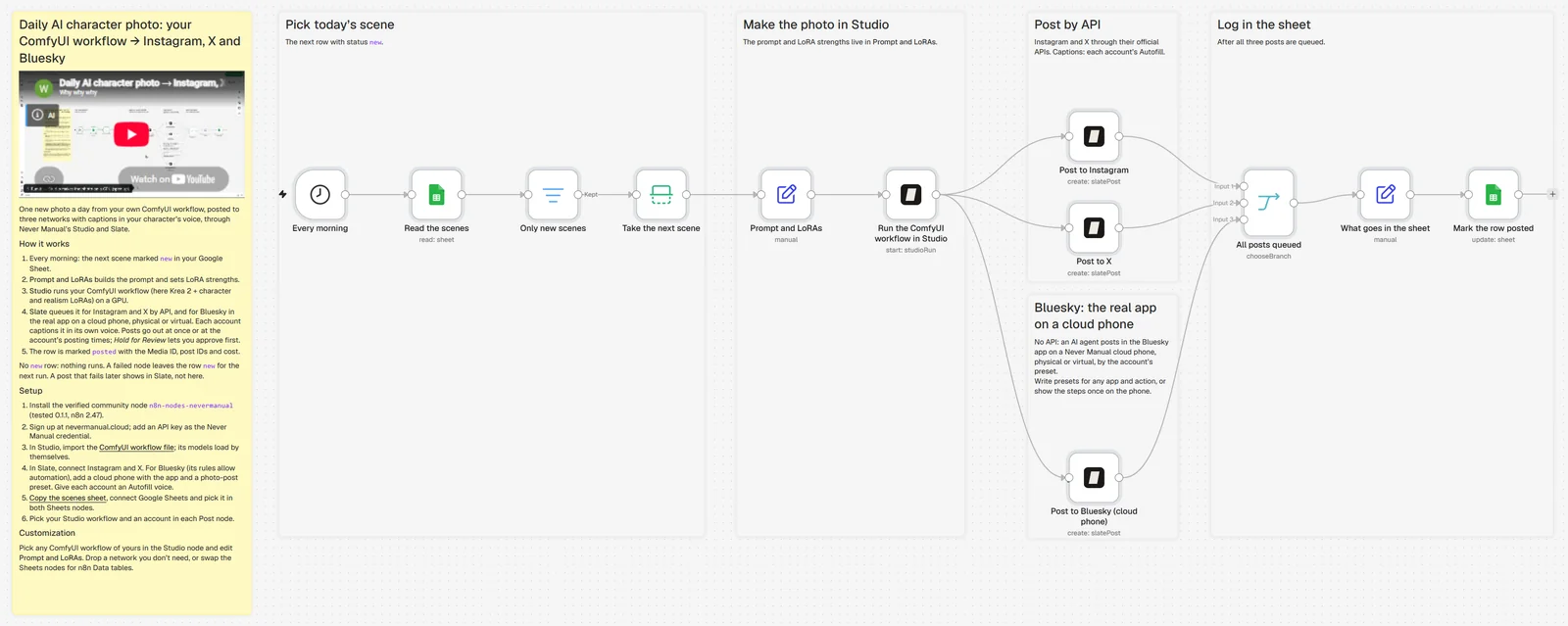
The template in n8n. The notes on the canvas repeat the setup steps.
What you need
- n8n Cloud or a self-hosted n8n. We tested the template on n8n 2.47.
- The Never Manual node, n8n-nodes-nevermanual 0.1.1. n8n has verified it, so it installs on n8n Cloud too.
- A Never Manual account and an API key.
- Instagram and X accounts you can sign in to, and a Bluesky account for the Cloud Phone.
- A Google account for the sheet.
- The files: the template, the ComfyUI workflow and sample scenes are on GitHub.
1. Install the node and add your key
In n8n, open the nodes panel, search for Never Manual and choose Install node. On a self-hosted n8n you can also install n8n-nodes-nevermanual under Settings → Community nodes.2
In Never Manual, open Settings → API keys and make a new key. In n8n, add a Never Manual credential and paste the key. All the Never Manual nodes in the template use it.
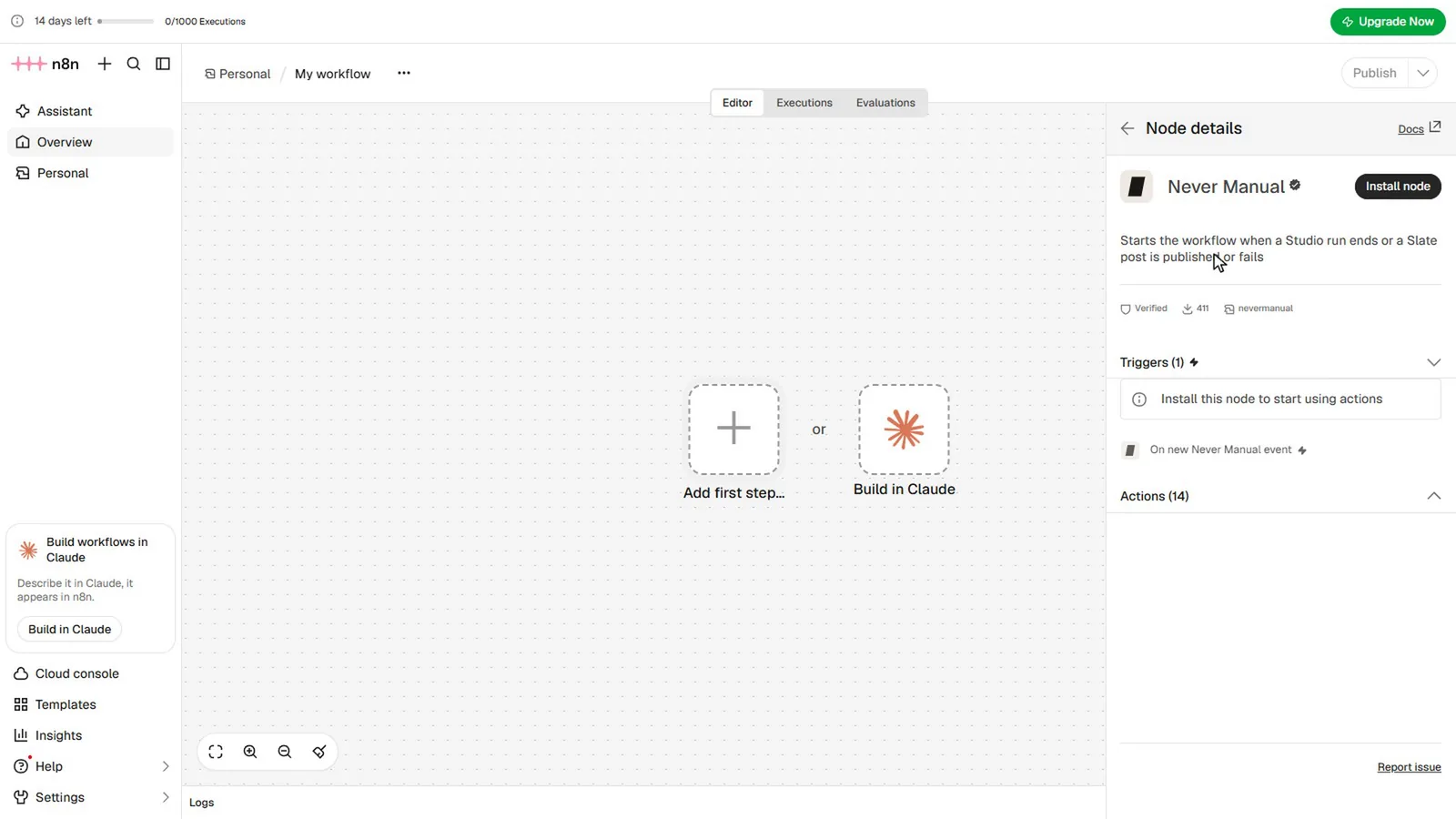
The Never Manual node in n8n’s nodes panel.
2. Add your ComfyUI workflow to Studio
Download Krea 2 Kiki + realism.json. It’s an ordinary ComfyUI workflow: Krea 2 Turbo with the Kiki character LoRA at 0.92 and a realism LoRA at 1.0. Each model in it carries its download link.
In Studio, open Workflows, add a new ComfyUI workflow and drop the file. Studio checks every node and model and finds each model by its link, so you don’t upload any. When it shows Ready to add, name the workflow and add it.
Any workflow of yours goes in the same way. Export it from ComfyUI, drop it in, and pick it in the n8n node later.
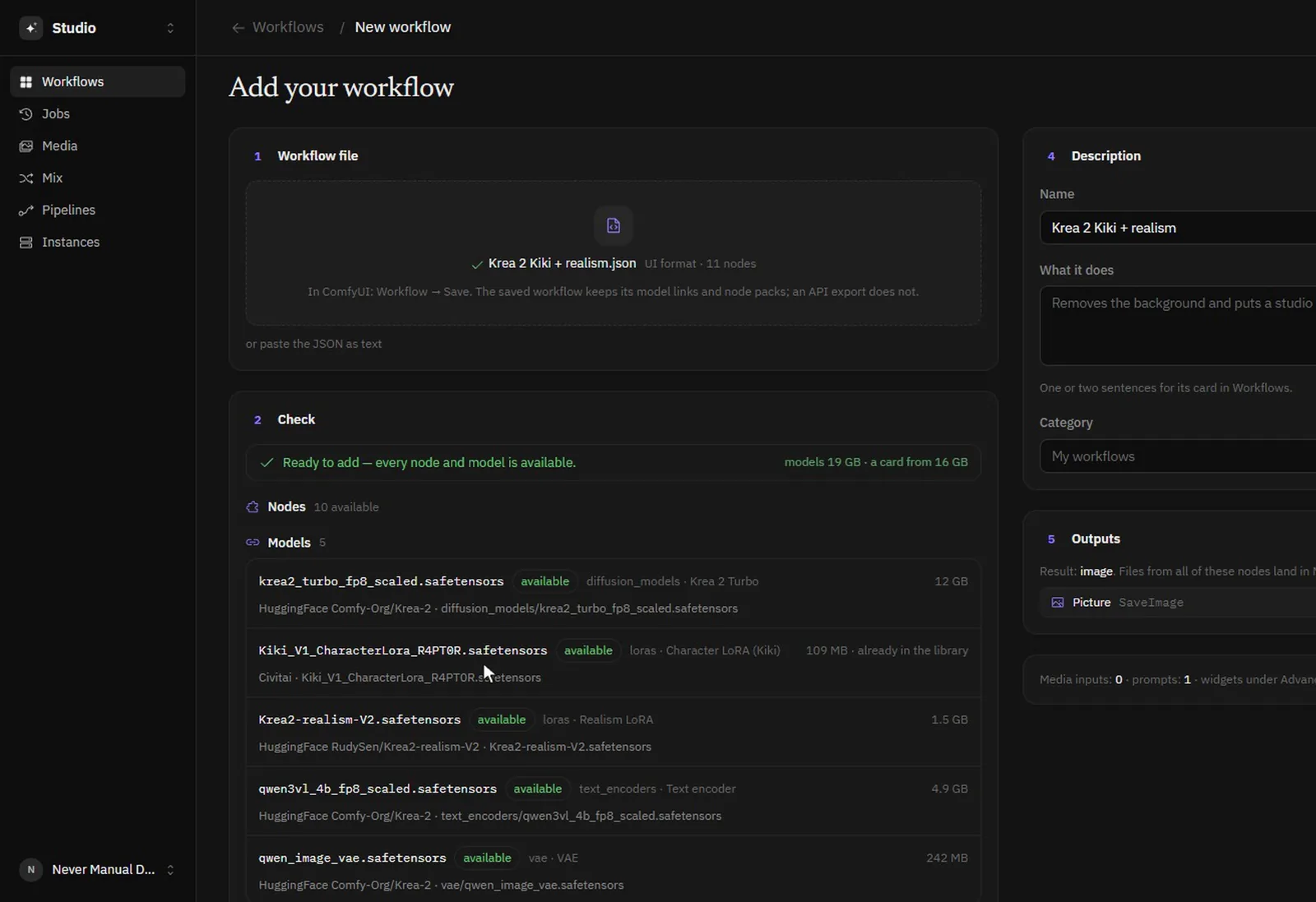
Studio checks the workflow’s nodes and models before you add it.
3. Connect the accounts in Slate
In Slate, open Accounts and add Instagram and X. Each one takes a single sign-in on the platform’s own page, and from then on Slate posts to it by API.

Three accounts: two post by API, one from a Cloud Phone.
Bluesky goes out from the real app instead. In Phones, add a Cloud Phone, physical or virtual. A virtual one takes about a minute to start, and a physical one is ready at once. Install the Bluesky app from the phone’s page (Add files → Install an app…), sign in to your account on the phone and link the account in Slate. Then set the account to post From a phone and give it a preset. The preset is covered further down.
Captions come from Autofill. Give each account a voice, a few lines on who the character is and how she writes, and every post the template sends without text gets a caption in that voice.
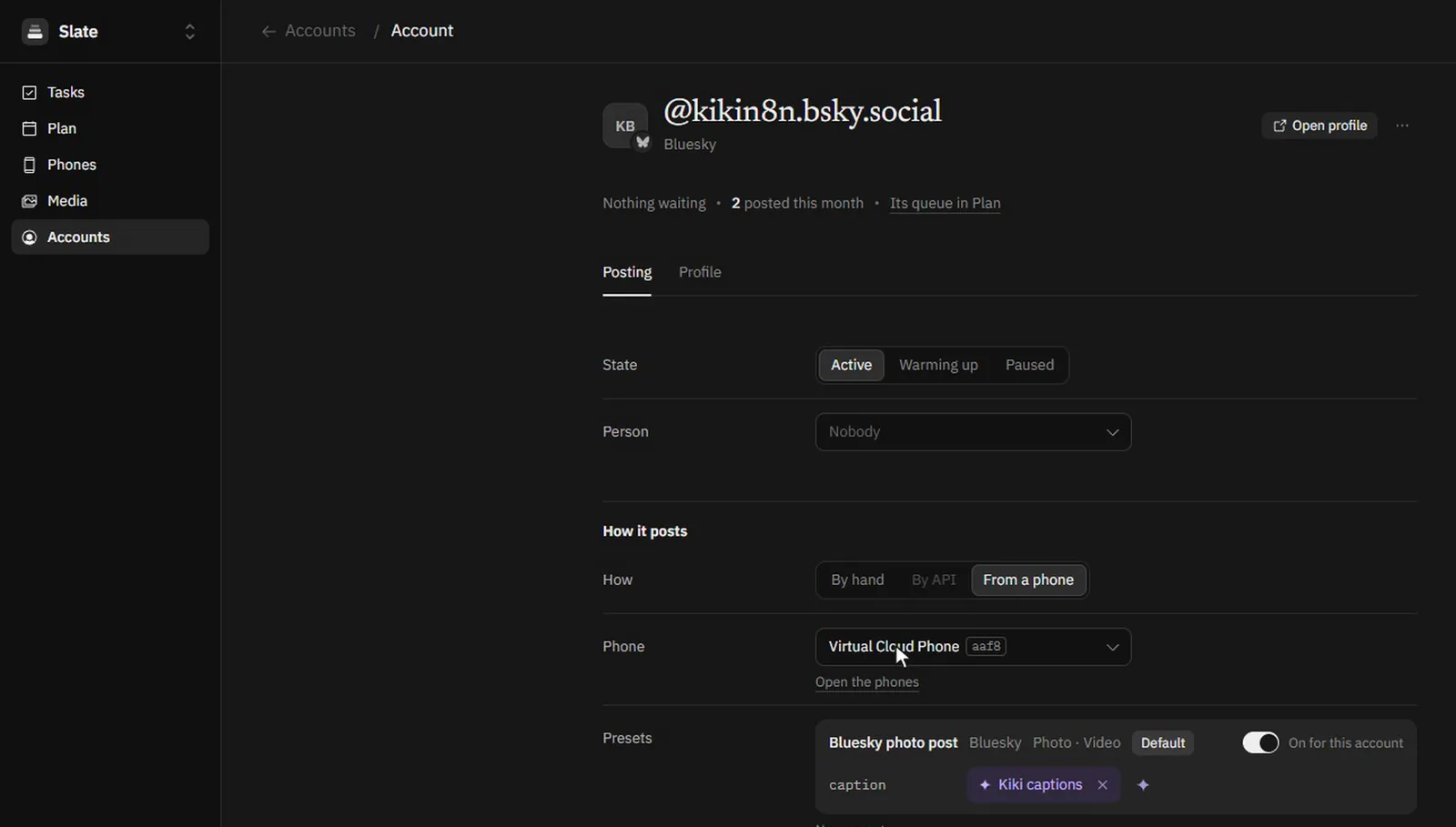
The Bluesky account posts from a phone with its default preset, and its captions come from a voice.
4. Copy the scenes sheet
Copy the ready sheet to your Google Drive, or import character-scenes.csv from GitHub into a new sheet. The columns are scene, status, media_id, instagram_post, x_post, bluesky_post and cost.
A row with the status new waits its turn. Write your own scenes the same way, a few sentences each about the shot, the place, the clothes and the light.
5. Import the template and fill in the nodes
Import the template from its n8n page, or import n8n-workflow.json from GitHub under Import from file. Then fill in the nodes:
- In Read the scenes and Mark the row posted, connect Google Sheets and pick your copy of the sheet. Mark the row posted finds the row by row_number.
- In Run the ComfyUI workflow in Studio, pick your workflow. The prompt goes to the workflow’s Prompt input, and the two LoRA strengths go to its nodes 11 and 12 under Advanced settings.
- In each Post node, pick the account. Leave the text empty for Autofill captions.
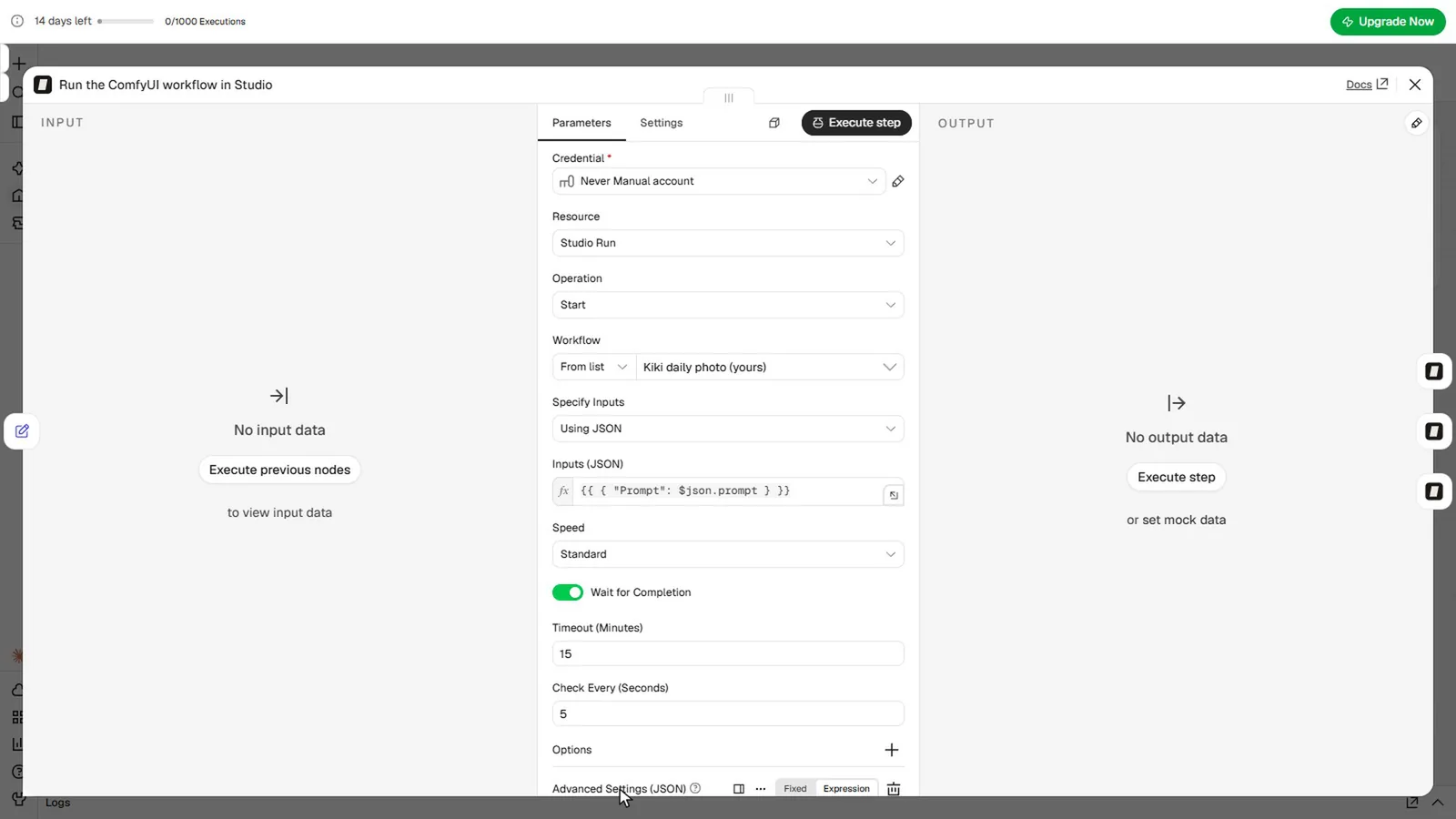
The Studio node: your workflow, its Prompt input, and a wait for the photo.
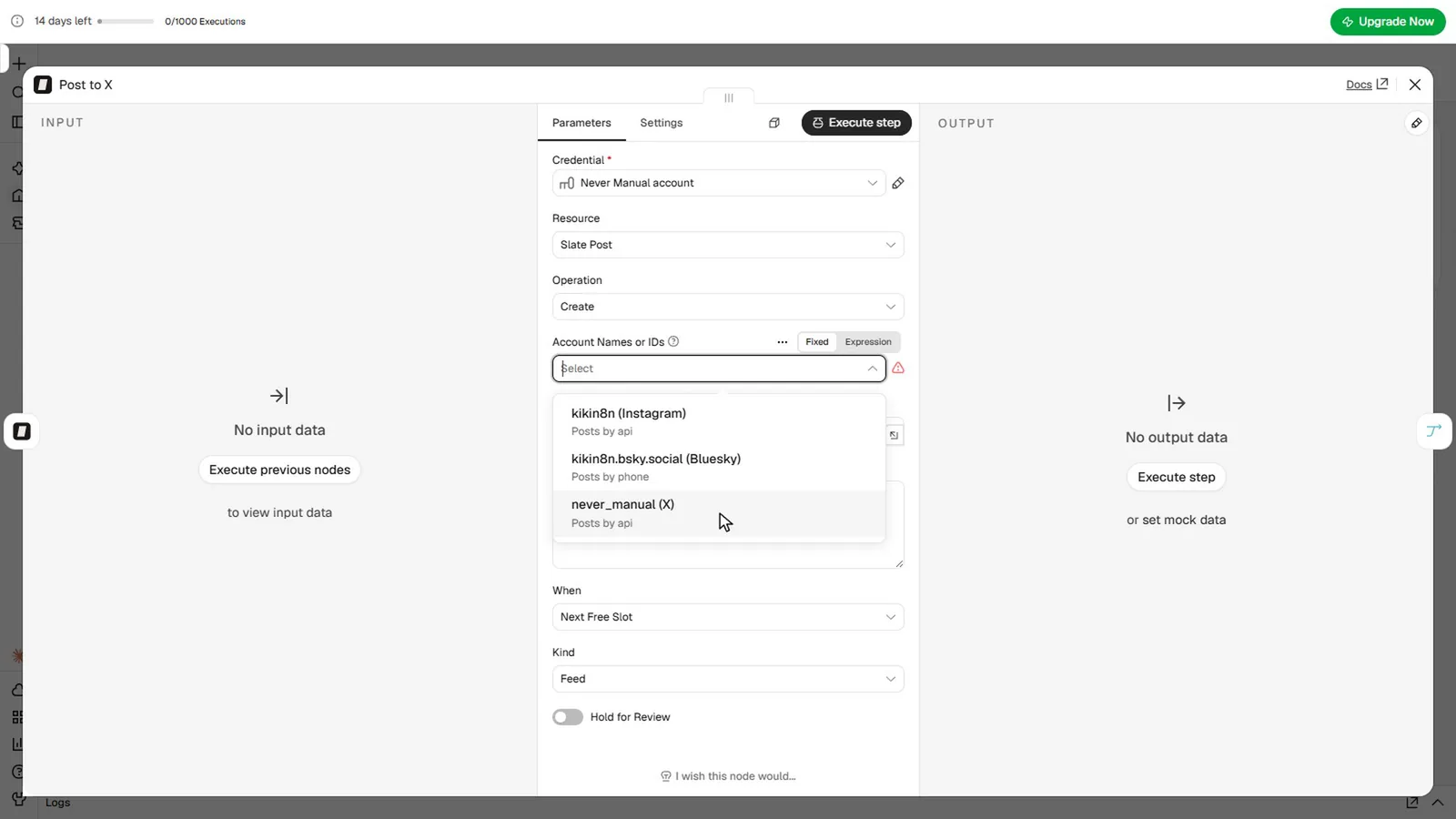
A Post node lists the accounts in your Slate workspace.
6. Run it once, then publish
Choose Execute workflow. The run takes the first new scene, Studio makes the photo, and the three posts go to Slate. The photo takes from under a minute to a few minutes when a GPU has to start first.
Posts go out right away, or at the account’s posting times if you set them in Slate. To approve each post first, turn on Hold for Review in the Post nodes, and the posts wait in Slate until you release them.
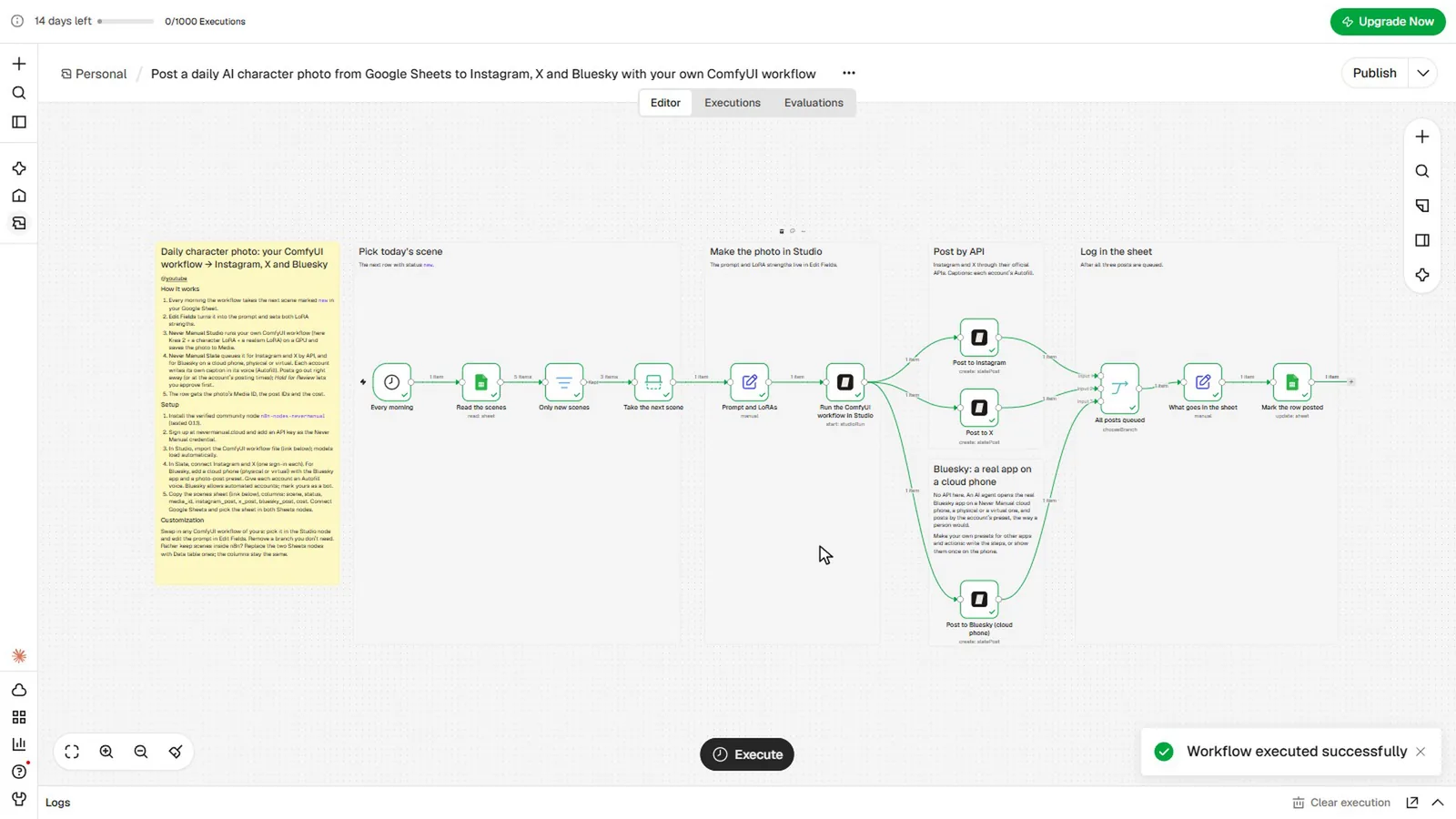
A finished run.
The row now reads posted, with the photo’s Media ID, the three post IDs and what the run cost. When the run looks right, publish the workflow, and the schedule takes the next scene every morning.

The sheet after three runs.
How the Bluesky post goes out
The bot guide of the AT Protocol, the network Bluesky runs on, says that bots posting on a regular schedule are welcome, and asks bot accounts to label themselves as bots.1 That’s why the template shows the phone branch on Bluesky. Rules differ from app to app, so read each app’s terms before you automate an account there.
On the Cloud Phone, an AI agent opens the Bluesky app and follows the account’s preset, the way a person would. The preset in this template is one sentence: Post {photo} with the caption {caption} on my profile. Words in braces are its fields. You give each field a type, and Slate fills them from the post: the photo from Media, the caption from Autofill.
A preset can be one line like this one or several steps, and you can also show the steps once on the phone instead of writing them.
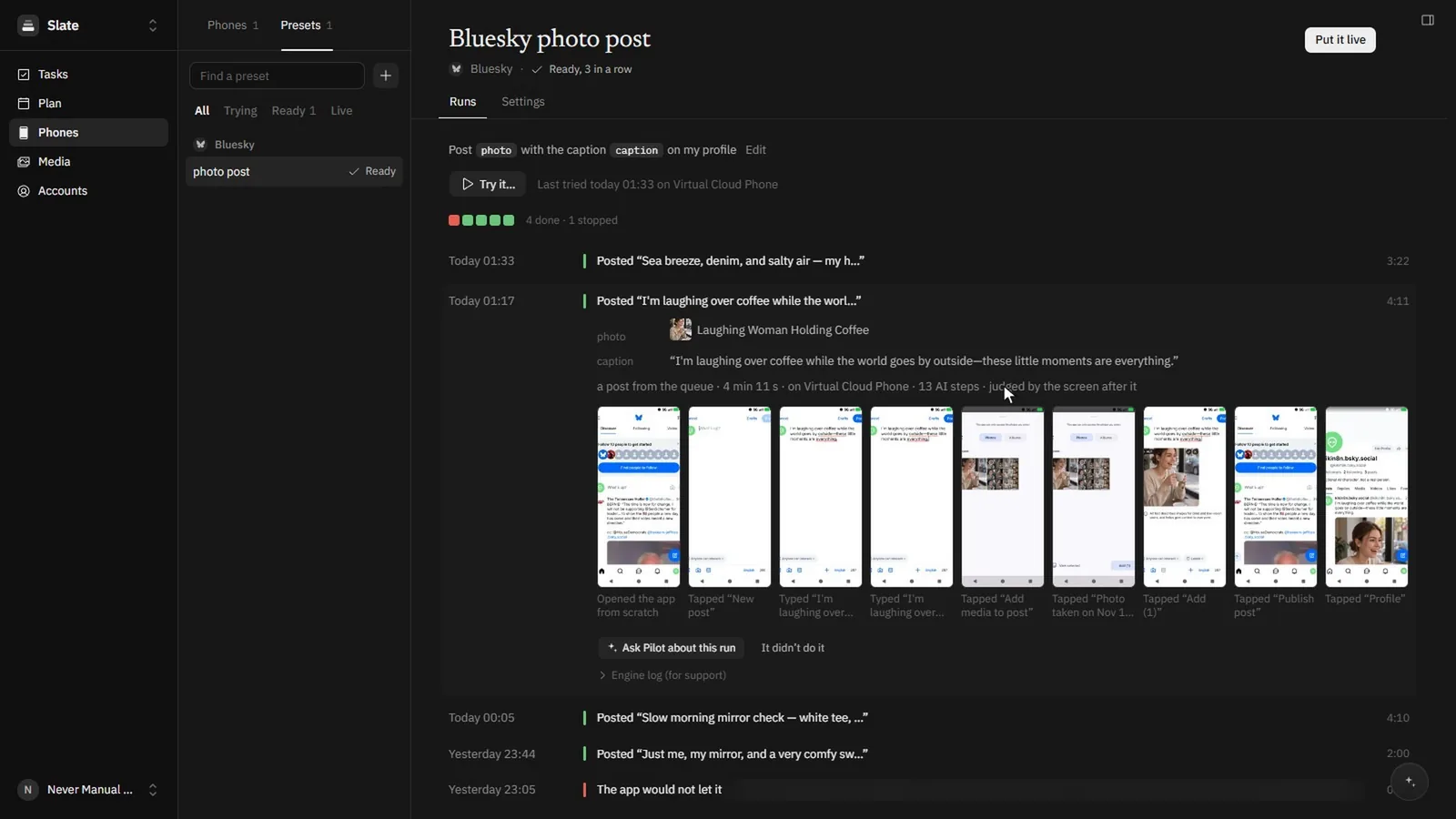
The preset’s runs. Each run keeps a screen for every step.
When the run ends, the post in Slate reads posted. If a run can’t tell whether the post went out, the post waits for you to check it and isn’t sent again on its own.
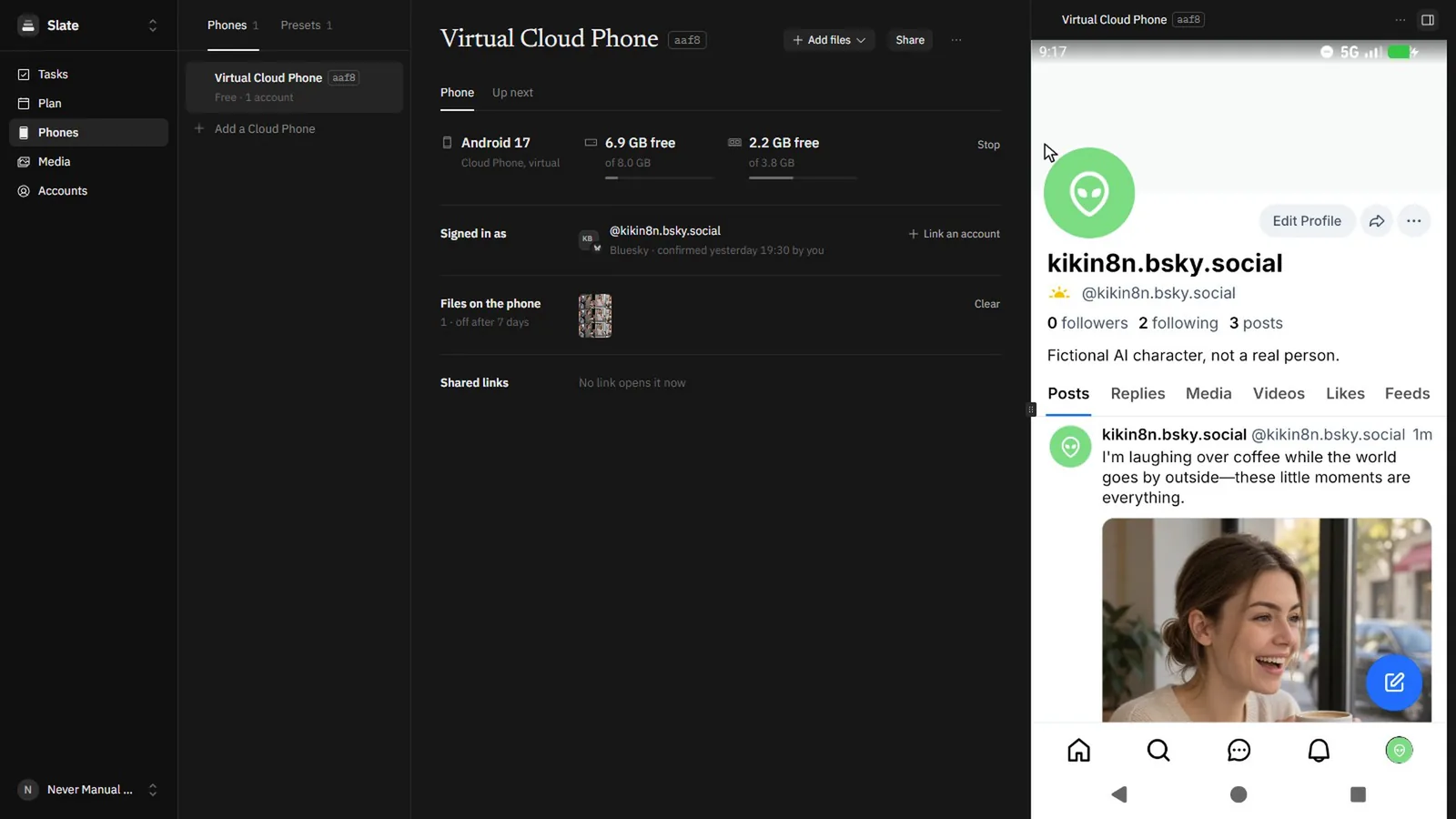
The Cloud Phone after the run, with the post on the profile.
Make it yours
- Your own workflow. Pick it in the Studio node. If its prompt input has another name, change Prompt in the node’s inputs, and point the LoRA strengths at your node numbers under Advanced settings.
- Your own character. Put your character LoRA into the workflow in ComfyUI and add the workflow to Studio again. Check each model’s license before you use the photos commercially.
- Fewer or more networks. Delete a Post node you don’t need and give All posts queued the same number of inputs, or add a Post node for any other account in Slate.
- Scenes in n8n. Replace the two Sheets nodes with Data table nodes. The columns stay the same.
Questions
Do I need a GPU or a ComfyUI server?
No. Studio runs your workflow on our GPUs, and each run is paid from your balance.
Does the template work on n8n Cloud?
Yes. The Never Manual node is verified by n8n, so it installs from the nodes panel on n8n Cloud and on a self-hosted n8n.
What happens if a step fails?
The row keeps the status new, and the next run takes the same scene again. A post that fails after it’s queued shows in Slate, not in the sheet.
Can I see the posts before they go out?
Yes. Turn on Hold for Review in the Post nodes, and the posts wait in Slate until you release them.
Where are the template’s files?
On GitHub, next to the node’s code: the template, the ComfyUI workflow, sample scenes and a picture of the workflow.
Run your ComfyUI workflow from n8n.
Add your workflow to Studio and start it from the Never Manual node, on our GPUs.
Sources
Checked on November 11, 2026.
- AT Protocol: Build an Agent, the bot tutorial. atproto.com
- n8n Docs: Install and manage community nodes. docs.n8n.io